
To do this in Blogger is a little different than with Typepad because Blogger does not have a File Manager. Instead, you can use a free service from Google called Google Docs (http://docs.google.com).
Using Google Docs and Using the Link in a Post
- Go to www.docs.google.com.
-
If you are not already logged into your Blogger account, then use your Blogger account information (username/password) to login to Google Docs (it's the same).
-
From the main screen, click the UPLOAD button. Then a screen below will appear:


- From this window, click the Browse button to locate the file on your computer that you would like to link to from your Blogger post. Click OK once you've selected the file.
- From this screen type if a name "What do you want to call it?" if you want. Otherwise, click Upload File.
- The document is now previewed on your screen. Copy and select the URL address. This address is what you will use in the post!
- Go back to your post or create a new post in Blogger.
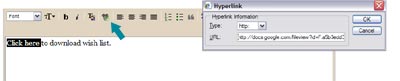
- Write something like "Click here to download the flyer".
- Select the two words "Click Here" and click the LINK button on the toolbar (looks like a paper clip or infinity symbol). Paste in the URL address you copied from Google docs.
- Finish your post and you're done.

Additional help file:
- Adding Sidebar Item and Link: https://www.blogsbyheather.com/2008/08/blogger-adding.html
Happy blogging!

Heather – you must have hear all of us grumbling and mumbling about this today – you are a life saver!!!
And a truely generous person – thanks!
Thank you thank you thank you! Your explanation wad totally clear and easy to follow – I had NO problems following them or getting my document uploaded!!! Thank you ever so much!
Pauline
Would you not have to use the URL of the published doc, rather than the URL that requires logging into Google Docs? I would think other people viewing your blog would be taken to a Google Docs login page by that link, and if it wasn’t shared with them, wouldn’t be able to view it even after logging in. Am I wrong?
Hi MIke!
Google docs is free and doesn’t require visitors to login. Its best to use Word documents. Those you can “publish” and be given a specific URL to then use and visitors can easily view the document. If you use a PDF…it can’t be published in the same manner and you will have to list emails to “share” the PDF with. So again…use a Word doc and publish it and you’ll be fine.
Thanks and email me directly if you need more help.
Best wishes, Heather 😀
Your site has been such a help to me this week while setting up a site for a parent organization! Just wanted to say Thanks!
Thanks, Heather. This has proven really helpful. I hope to use this function to help formulate part of my Professional E-portfolio. You’re a star!
Thank you for the very useful information! I had to give links to pdf files in my blog and your method worked. However, I find that the document is available to only those who have gmail accounts and can retrieve the document after signing in to their accounts 🙁 I wonder what I can do for people who do not have gmail account. Any advice would be welcome!
thanks so much, you are a lifesaver! (well, time saver…you get the point) 😀 Have a great day!
Picture beautiful! Background is also beautiful! Is a great visual enjoyment! Read the blog you are so beautiful! I feel very fortunate
Following on from this – I want to be able to link to word docs in my blog which people can click on to open up and edit – but not online – does that make sense and is it possible?
As far as I can see using google docs only allows for online editing meaning that lots of people contribute to one document, whereas I want them to be able to download their own versio? Can anyone help?
Thank you so much!!! This is exactly what I needed! 🙂
Just what I was looking for!! Thank you so much for sharing! 🙂
Great post just what I was looking for.
Thanks alot this is what i have been looking fro. It worked well
Thank you, I always wanted to know how to do that!!!
I will definitely follow you!
ciao
Alessandra
Thanks… it worked! I’m wondering how could we do to open a new window in order to view de pdf so my blog window still open.
You are really helpful!
You can. You have to switch to HTML view and look for the HTML code similar to ….
and in this line put target=_blank.
such as
You are great!! It worked! Many Thanks!!
Heather, what version of blogger do you have? My blogger toolbar doesn’t have that clipboard button you mentioned above.
Hi Heather,
I would like to know if is possible to count the number of download from post or page.
So we could know if people are interested or not
thanks in advance!
Hi Fernanda!
You can use these tools to help track visitor activity on a given page:
http://www.chartbeat.com
http://www.crazyegg.com
http://www.clicktale.com
http://www.clickdensity.com
Heather 😀
Thanks for the information!
Heather, thank you SO MUCH for this information – you have made my life so much easier!
Thank you so much!
Thank you so much! I needed to know how to link up a PDF or word document to my blog post. PERFECT!!
ugh. seriously, THANK YOU. been searching all day and you were the first one that made it clear and fast enough to help me:)
Thanks Heather. Your instructions on how to upload a PDF or Word doc as a link in a Blogger page were perfect. So easy, clear and concise.
Thanks ! Didn’t know how to do this (merci merci merci… Yes, it’s a french guy speaking)
I just used this tutorial to add a printable on my blog! Thank you it was very helpful!
thank you so much for this post! just what i needed
This is awesome info, thanks!
Heather, great work, so much here.
Hi Heather, I kinda guess that I’d need to use Google Docs but wasnt sure how. Question is how do I add this download function to a side bar? Thanks, Baz
Thank you soooo much Heather!! I have been trying so hard to get pdf’s onto my blog for this thing I am doing (I am still working on it) and I had no idea how to link the pdf to the blog. This tutorial helped heaps and cleared up so much!
Thank-you!!
YOU SAID. “From the main screen, click the UPLOAD button. Then a screen below will appear:”
THERE IN NO screen ! Nothing appears ! can u help? thank you/
Hi Lisa!
Yes, when you click the Upload button, a screen should appear that lets you select a file to upload from your computer to Google Docs.
If that screen doesn’t pop-up…do you have your Pop-up Blocker on? Or try holding down the CTRL key when clicking the Upload button.
Keep me posted…
Heather 😀
Thanks so much for this! This is way more simple than I had expected.
I do not have the paper clip on the new blogger, April 2012.
You may instead have a blue word/link that says “Link”. Give that a try.
Keep me posted 😀
Excellent tutorial. Do you know if you have to tick the box to convert to google docs format when you upload a PDF? Does it matter? Thank you
The Auto Enthusiast
Hi Donald!
Nope, you do not have to check!
Have a great weekend,
Heather 😀
Thank you! Very helpful!
Thank you. That was so helpful!
I did it and now wonder how some bloggers display their document, as well.
How can I show what the document looks like if I want to do that?
Thanks again!
Sara
Heather, thank you so much for posting this. It was VERY helpful. =)
very useful.
You are beautiful. Thank you for the information. It was quick and easy to follow.
Nice article but visitors of my blog cannot access the pdf if they don’t have a google account which is not nice. Is there a way to avoid this?
Thank you!
Heather, thank you so much! I have an ebook that I want to make available to the public for free download and was stymied at how to get a URL for it. I think this has solved my problem.
I am having the same problem as sicelo.. My visitors cant access the documents if they dun have google account.. Is there anyother way to make it possible?
Awesome! Thanks so much.
Thanks for this tutorial! So helpful.
after post the link on my blog i want visitors of my blog to able to download the document without being asked to put their pasword or any registeration is this possible please help me on this.
Thank you tremendously!!!!!!!!!
Finally! I have been trying to do this for a couple weeks, read many many blogs and instructions.
This is so easy! Thanks so much.
Elizabeth
http://ohiothoughtsblog.blogspot.com/
Great info. Lucky me I found your blog by chance (stumbleupon).
I’ve book marked it for later!