


Here's one for my WP bloggers out there!
I have the pleasure of working with my pal Jo Guerra from Your Marketing Gal in assisting her with setting up WP blogs for her customers. My work normally consists of fussing with the CSS code! LOL.
So, we had an interesting problem come up lately where the WP navigation dropdown menu was appearing "behind" the banner image. This problem really was only visible with IE 7. We did not have the problem with IE 8, FireFox, Chrome or Safari. And it is NOT a problem with all WP themes.

So I searched the web for a solution and found that the CSS property z-index is what is used to set the "stacking" order (which is set to the front most and back). The higher the z-index value the more towards the top it moves.
So, since the dropdown was "behind" the banner image, it meant that the current z-index value was smaller than that of the banner's z-index value.
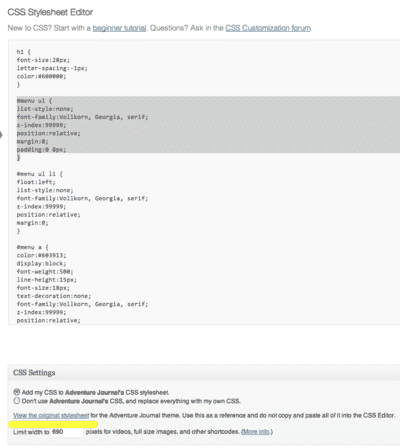
I clicked the "view original stylesheet" link (which is highligted in yellow below) and searched (using the CTRL + F to find) the occurances of z-index and wanted to find the greatest value. Although the banner was set to 10, the page corner graphic in the banner as set to 100, so technically any value greater than 100 would have worked. But to play it safe, I set it to 99999 which was the greatest value I found in the original style sheet for a sub-sub-dropdown-menu item. That is what you see highlighted in the code below (in gray).
NOTE: In the help files I found it says the CSS position property also needs to be set as well for the z-index to work best.
So if you are experiencing this problem with your dropdown menu, give it a try. This was with experimenting with the FREE WordPress, WordPress.com. Where you have to pay the $30 Custom Design upgrade to mess with CSS code.
I was able to replicate the problem in Safari and fix it. However, there may still be an issue with IE 7 viewing it properly. So, another theme may be the solution or a reorganization of the menu and navigation layout.
Hope this helps!
Heather 😀
www.BlogsByHeather.com
Up next is more on Pinterest (follow me gadget for the sidebar) but I wanted to throw this in there as something for others out there not using Pinterest. Enjoy!