
This is what you've all been waiting for!
Many of us use Photoshop or Photoshop Elements, however many are looking for a free program to help add a watermark to your images or to help resize them.
Here is the solution (recommended to me and SUDSOL originally from Erika Martin) – FastStone.(http://www.faststone.org/FSResizerDetail.htm). Click to download it to your computer.
Once installed, open/run the program. The following instructions are on how to resize and add a watermark to an existing image. This program can also do other things such as cropping, but this tutorial is covering resizing and adding a watermark but please have fun experimenting on your own as well.
- From the Main Menu, on the left side you can select a folder where your images reside on your local computer – many store them in My Pictures under the My Documents folder.
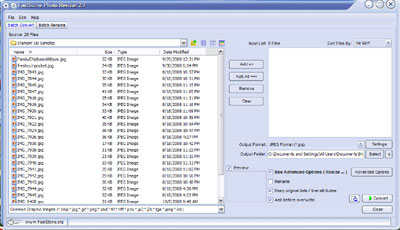
- So, on the left side, select which ever images you would like to resize and add a watermark to. You can select one at a time and click the Add =>, or you can select many by holding down the CTRL key while clicking on various pictures, then click Add=>, or you can choose to Add All=>.
- After you have selected the desired images to be resized and have a watermark added to, then look to the bottom of the form.

- Select an Output Format, such as the common JPG.
- Choose an Ouput Folder. This is a place on your computer where the new, finalized pictures will be store. The originals are separate.
- Check to use Advanced Options.
- Then click on the Advanced Options button.
- First, we'll work with the Resize tab.
- Choose a percentage to set pixels. In this example I used 80%.

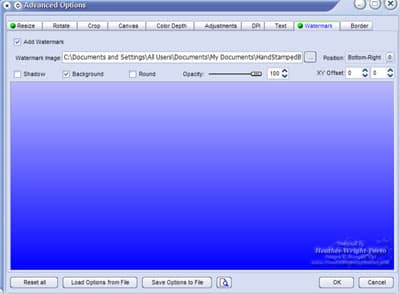
- Then, click on the Watermark tab.

- Click the check box for Add Watermark.
- Select the watermark image from your computer (by clicking the … button).
- Click a checkbox next to Background, and then move the watermark where you want it to be placed on all the previously selected images. In my example, I selected the lower, right corner.
- Click OK and it saves any and all options selected in the Advanced Options area.
- Now click the Convert button to finish. This resizes and adds the watermark to the selected images to the Output Folder previously specified.
- You will then see a list of all the images modified.
- Click Done.


Other related tutorials on image editing, creating and adding watermarks: https://www.blogsbyheather.com/image_editing/
Hope this helps!

HELP!!! I have been trying to make this work for OVER AN HOUR and I’m getting VERY frustrated! HOW do I upload the actual watermark image? I’ve created one in Word and saved it as a regular Word document, as a JPEG file, as an Adobe document, but when I click on the link for the watermark image NOTHING shows up as available to download. Personally I’ve about given up at this point….
THANKS Heather!! This helped me so much 🙂
Thanks for the information! I love your website and all of your tips! I think I’ve told you this a few times 🙂
I normally don’t place in Blogs but your blog pushed me to, beautiful operate.. Pleasant …